Topaz Video AI Review 2026 – Features, Pricing, Pros & Cons
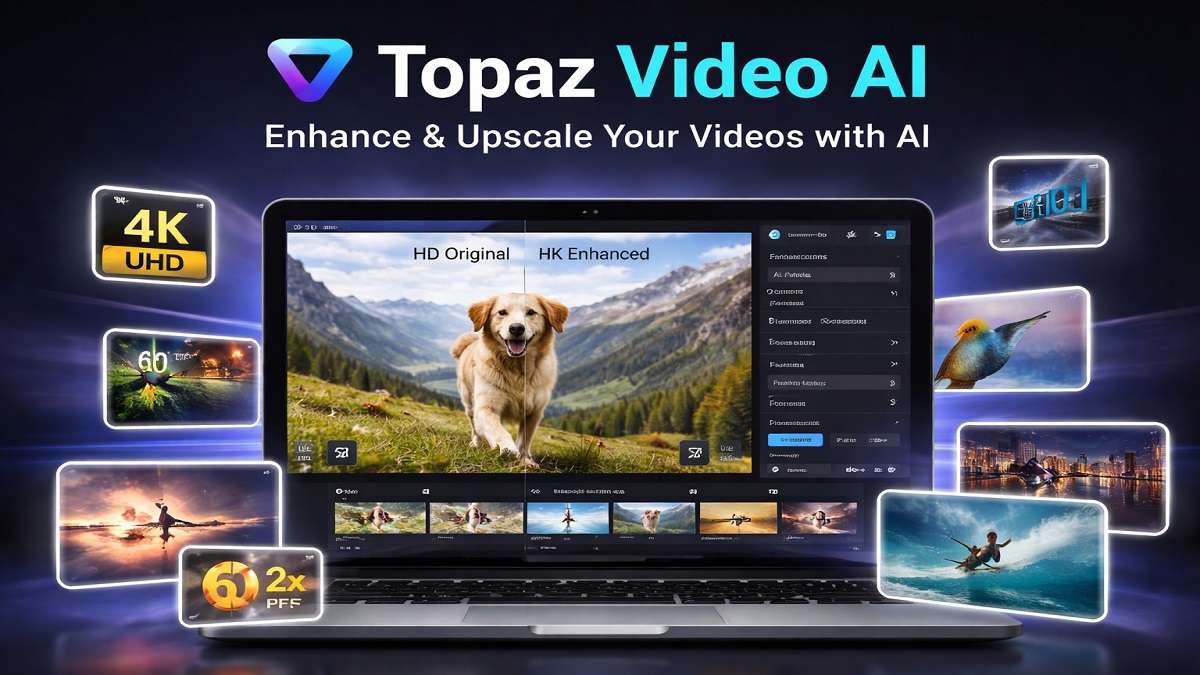
Topaz Video AI Overview
Topaz Video AI is one of the most powerful AI video enhancement tools available today. The software uses advanced machine learning models to upscale video resolution, restore old footage, increase frame rates, and improve overall video clarity.
Unlike traditional video editing software, Topaz Video AI focuses specifically on automated video enhancement. The AI engine analyzes video frames and reconstructs missing details, allowing users to convert low-resolution videos into high-definition or even 4K footage.
This technology makes Topaz Video AI particularly useful for filmmakers, video editors, YouTubers, and content creators who want to restore old footage or improve video quality without manually editing every frame.
Topaz Video AI: Quick Verdict
Topaz Video AI is widely considered one of the best AI-powered video enhancement tools available today. Its advanced deep learning models allow users to upscale video resolution, reduce noise, stabilize footage, and increase frame rates automatically.
While it requires a relatively powerful computer to run efficiently, the results it produces are often significantly better than traditional video upscaling methods.
Pros
- Industry-leading AI video upscaling
- Supports 4K and 8K enhancement
- Frame interpolation for smoother motion
- Advanced noise reduction and stabilization
- Works with many video formats
Cons
- Requires a powerful GPU for best performance
- Rendering can take time for long videos
- Higher price compared to basic editors
What is Topaz Video AI?
Topaz Video AI is a professional video enhancement software developed by Topaz Labs. It uses artificial intelligence to analyze video frames and reconstruct missing details that traditional upscaling algorithms cannot recover.
The software can convert SD videos into HD or 4K resolution, reduce compression artifacts, sharpen blurry footage, and generate additional frames to create smoother motion.
Because it relies on trained neural networks rather than basic interpolation algorithms, the results are often much more natural and detailed.
How Topaz Video AI Works
- Import Your Video – Launch Topaz Video AI and upload your source video. The software supports a wide range of formats and resolutions.
- Select AI Model – Choose the appropriate AI model (Proteus, Artemis, Iris, Nyx, etc.) based on your video type, such as low-quality footage, animation, or high-compression clips.
- Adjust Enhancement Settings – Customize parameters like upscale resolution (HD, 4K, 8K), noise reduction, sharpening, frame rate, and stabilization.
- Preview the Output – Use the real-time preview feature to compare before and after results and fine-tune settings for the best quality.
- Apply Additional Enhancements – Enable features like frame interpolation, motion deblur, HDR conversion, or deinterlacing if needed.
- Export Settings – Choose output format, codec, bitrate, and resolution according to your requirements.
- Render the Video – Start the processing. The AI engine will enhance your video frame by frame using GPU acceleration.
- Review and Save – Once rendering is complete, review the final output and save or export it for your project.
Key Features of Topaz Video AI
- AI Video Upscaling – Enhance low-resolution videos to HD, 4K, 8K, or even higher while preserving fine details and reducing artifacts.
- Advanced Denoising – Remove noise, grain, and compression artifacts while maintaining natural textures, ideal for low-light or old footage.
- Frame Interpolation & Slow Motion – Generate additional frames to convert low FPS videos into smooth high frame rate or cinematic slow-motion clips.
- Video Stabilization – Fix shaky footage with AI-powered motion analysis, producing smooth, professional-looking videos.
- Multiple AI Enhancement Models – Choose from specialized models like Proteus, Iris, Nyx, Artemis, and Gaia for different enhancement needs.
- Motion Deblur – Restore sharpness by reducing blur caused by fast motion, camera shake, or low shutter speeds.
- Deinterlacing Support – Convert interlaced footage into progressive format for better clarity and modern playback.
- HDR Conversion (SDR to HDR) – Improve brightness, contrast, and color depth for more vibrant and dynamic visuals.
- Batch Processing – Process multiple videos at once, saving time and improving workflow efficiency.
- Flexible Workflow Integration – Works as a standalone app or integrates with professional editing tools like DaVinci Resolve and Adobe Premiere Pro.
- High-Resolution Output – Supports output up to 16K+ resolution with enhanced detail and clarity.
Performance and Ease of Use
Topaz Video AI delivers exceptional video enhancement quality, but its performance largely depends on your system hardware. The software is resource-intensive and requires a powerful GPU and sufficient RAM to achieve optimal results.
Performance
- Hardware-Dependent Speed – Processing speed varies based on your CPU, GPU, and video complexity. High-end systems perform significantly faster.
- Slow Rendering Times – Tasks like upscaling and frame interpolation can be time-consuming, especially for long or high-resolution videos. Even short clips may take several minutes to process.
- High Resource Usage – The software utilizes substantial system resources, including GPU and memory, during rendering.
- Model-Based Performance – Different AI models (e.g., interpolation vs upscaling) vary in speed, with frame interpolation typically being slower.
- Excellent Output Quality – Despite slower speeds, the final output is highly detailed, with improved sharpness, reduced noise, and smoother motion.
Ease of Use
- User-Friendly Interface – The clean and intuitive layout makes it easy for beginners to navigate and start enhancing videos quickly.
- Quick Learning Curve – Most users can understand the basic workflow within minutes, thanks to clear controls and presets.
- Preview Functionality – Real-time previews allow users to compare before-and-after results and fine-tune settings.
- Advanced Customization – Offers manual controls for experienced users who want precise adjustments and better results.
- Initial Setup Delays – AI models may need to be downloaded during first use, causing minor delays.
Overall, Topaz Video AI strikes a balance between ease of use and professional-grade performance. While it may require powerful hardware and patience during processing, the quality of results makes it a valuable tool for video enhancement and restoration.
Topaz Video AI Key Specifications
- Software Type – AI-powered video enhancement and upscaling software
- Supported Platforms – Windows 10/11 and macOS (Intel & Apple Silicon)
- Minimum RAM – 16 GB (32 GB or more recommended for smooth performance)
- GPU Requirements – Dedicated GPU required (NVIDIA GTX 900 series / AMD Radeon 400 series or higher with at least 4–6GB VRAM)
- Recommended GPU – NVIDIA RTX 3000 series or higher with 8GB+ VRAM for optimal performance
- Processor (CPU) – Intel or AMD processor with AVX support (2015+ recommended)
- Storage Requirement – Approximately 45 GB of free disk space for installation and AI models
- Maximum Output Resolution – Supports up to 8K–16K video output depending on hardware capability
- AI Models – Includes multiple models such as Proteus, Artemis, Iris, Nyx, Gaia, and more
- Supported Input Formats – Wide range including MP4, MOV, AVI, MKV, and more
- Processing Engine – GPU-accelerated AI processing with support for NVIDIA, AMD, and Apple Silicon
- Internet Requirement – Required for activation, updates, and downloading AI models
- Integration – Works as standalone software and supports workflows with tools like Adobe Premiere Pro and DaVinci Resolve
Topaz Video AI Pricing
Topaz Video AI offers flexible pricing through subscription plans and (previously) a one-time purchase model. Pricing may vary depending on billing cycle and features included.
Subscription Plans
- Personal Plan – Starts at $25/month (billed annually – $299/year) or around $33/month on a monthly plan.
- Pro Plan – Around $58–$67/month (or $699/year), offering additional features like extended cloud credits and commercial usage.
One-Time Purchase (Legacy Model)
- Perpetual License – Previously available for around $299 (one-time), including 1 year of updates.
- Upgrade Plan – Optional yearly updates after the first year (~$149), while the software remains usable indefinitely.
Additional Costs
- Cloud Credits – Some plans include monthly video processing credits; additional credits may cost extra depending on usage.
- Topaz Studio Bundle – Starts around $33/month and includes multiple Topaz apps (Video, Photo, Gigapixel, etc.).
There is no permanent free version, but a trial may be available. The subscription model now provides access to the latest AI models, updates, and cloud-based features, making it suitable for both individual creators and professionals.
Who Should Use Topaz Video AI?
Topaz Video AI is designed for users who need high-quality video enhancement, restoration, and upscaling. It is especially useful for professionals and creators working with low-resolution, noisy, or older footage.
- Content Creators & YouTubers – Ideal for enhancing video quality, improving resolution, and making content look more professional without reshooting.
- Filmmakers & Videographers – Useful for restoring archival footage, enhancing B-roll, and creating cinematic slow-motion sequences.
- Video Editors – Perfect for projects involving mixed-quality footage that needs upscaling, denoising, or frame interpolation.
- Documentary Makers – Helps restore historical or degraded footage and bring old visuals back to life.
- Photographers Expanding to Video – Great for professionals who want to enhance video content with the same level of detail as photos.
- Restoration Professionals – Suitable for working with VHS, film scans, or legacy formats that require advanced AI cleanup.
- Social Media Creators – Enhances reels, short videos, and promotional content for better engagement and visual appeal.
- Advanced Hobbyists – Ideal for users who frequently work with video enhancement and are comfortable with powerful software and longer rendering times.
Not Ideal For: Casual users with basic editing needs, those with low-end hardware, or users looking for quick and lightweight video editing tools. Topaz Video AI is best suited for users who prioritize quality over speed and have the necessary system resources.
Topaz Video AI vs Alternatives
| Feature | Topaz Video AI | DaVinci Resolve | Adobe Premiere Pro | Other AI Tools (HitPaw, AVCLabs) |
|---|---|---|---|---|
| Primary Use | AI video enhancement & upscaling | Professional video editing + color grading | Video editing with AI-assisted tools | AI upscaling & enhancement |
| Upscaling Quality | Excellent (best for low-res restoration) | Very good (more natural look) | Moderate (not AI-focused) | Good (slightly below Topaz) |
| Denoising | Strong AI-based noise removal | Balanced & natural denoise | Basic noise reduction | Good, varies by tool |
| Ease of Use | Beginner-friendly | Steep learning curve | Moderate | Very easy (most tools) |
| Performance Speed | Slow (hardware-intensive) | Faster for editing tasks | Fast (optimized workflow) | Generally faster than Topaz |
| Hardware Requirement | High (powerful GPU needed) | Medium to high | Medium | Medium (some cloud options available) |
| Editing Features | Limited (enhancement-focused) | Full professional editing suite | Full editing suite | Limited |
| Max Resolution | Up to 8K–16K | Up to 8K | Up to 4K–8K | Up to 4K–8K |
| Pricing Model | Subscription / (legacy one-time) | Free + paid version | Subscription | Mostly cheaper (lifetime or subscription) |
| Best For | Restoration & AI enhancement | Professional editing workflows | Content creation & editing | Budget users & quick enhancements |
Final Verdict
Topaz Video AI stands out as one of the most powerful AI-driven video enhancement tools available today. Its ability to upscale footage, reduce noise, restore details, and generate smoother motion is among the best in the industry, making it a top choice for professionals and serious creators.
The software excels in delivering exceptional output quality, especially when working with low-resolution, compressed, or old footage. It can significantly improve visual clarity and bring new life to videos that would otherwise be unusable.
However, this high level of performance comes with trade-offs. Topaz Video AI is resource-intensive, requiring a powerful GPU and ample RAM to run efficiently. Processing times can be slow, particularly for high-resolution or complex enhancements, and achieving the best results may require some experimentation with different AI models.
Pricing is another consideration, as the software is relatively expensive compared to many alternatives. Casual users or those with basic editing needs may find simpler and faster tools more suitable.
Overall Rating: ⭐⭐⭐⭐☆ (4/5)
Final Thought: If your priority is maximum video quality and professional-grade enhancement, Topaz Video AI is absolutely worth it. But if you need speed, lower cost, or lightweight editing, you may want to explore alternative tools.
Try Topaz Video AI Now